File Locking: Access Is Denied? Not Anymore.

I’m sure most of you have encountered this type of error, at one time or another, while using Windows:

The "Error Deleting File or Folder" dialog shown when you attempt to delete a file that is in use.

It appears when you try to delete a file or folder that is currently in use by an application. To be completely accurate, the file needs to be in use and locked by the application to prevent external edits – the lock is likely the reason we see the error message. Sometimes it is really obvious which application has a locked handle on the file – for example, if it is complaining about a Word document – perhaps the document is still open in Word. Personally, I consider scenarios like that acceptable because they can be solved easily; unfortunately, all too often I get into trickier situations where I can’t figure out which application is holding onto my file. In those cases, I used to just reboot, and that would usually solve the problem. Yet, there were still cases where rebooting didn’t even do the trick.

Eventually, I was tired of struggling in those moments, and began searching for an application that could help – that’s when I found Unlocker. It allows you to remove locks from individual files via an “Unlocker” option within the Windows context menu. Definitely a nice feature… but listen to this – they took it a step further via  a system tray program called Unlocker Assistant. If you encounter the “Access is denied” error while Assistant is loaded, Unlocker will automatically pop up a few seconds after you click “OK”, and it will show you the culprits:

Unlocker Assistant showing the processes that have a hold on the locked file.

From their interface, you have the option of either killing the process, or unlocking the files themselves – effectively breaking the hold the application has on the file without having to terminate it. Very handy. You can download Unlocker here.

If you’re more inclined to trust Microsoft-sanctioned applications, grab Process Explorer – a Sysinternals app. I didn’t try it for this purpose specifically, but from what I’ve read, it isn’t as simple as Unlocker when it comes to removing the “Access is Denied” error specifically. It serves multiple purposes, whereas Unlocker is specialized.

Firefox: Failure In Chrome Registration

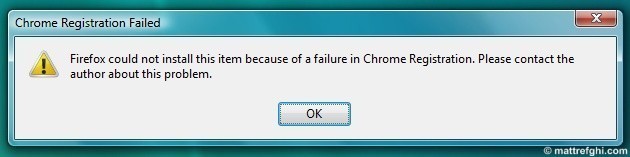
Lately, I’ve been getting 2-3 of these errors whenever I try to open Firefox:

"Chrome Registration Failed" error dialog that appears when you try to open Firefox.

I tried re-installing it, and also repairing it – but neither solved the problem. After spending some time googling to find a solution, I found a great knowledgebase article from the Mozilla guys themselves. Since it was difficult for me to find, I decided to offer the solution here too. Here’s the description of the problem, from the article:

The term chrome has been used in Mozilla development for 10 years, referring to the that part of the Firefox window that lies outside of a window’s content area. Toolbars, menu bars, progress bars, and window title bars are all examples of elements that are typically part of the chrome. It is in no way related to Google Chrome.

Chrome registration is something each Firefox add-on must do to work in Firefox. While some add-ons come with the appropriate chrome.manifest file, other add-ons rely on chrome.manifest being automatically generated when you start Firefox.

Chrome registration failure can occur when an add-on has come bundled with Firefox and you don’t have system rights to edit files where Firefox is installed. (Thus chrome.manifest cannot be generated.)

As for how I happened, I suspect it was either the fact that I applied a System Restore state recently, or a NoScript update I downloaded was flawed.

Solution

To fix it, I ran Firefox with administrative privileges once – and never saw the error messages again. The Mozilla article offers additional instructions, if that doesn’t fix your problem. See below.

To prevent this error from happening again, you need your system administrator to log on with an administrator account, and run Firefox at least once.

(Windows Vista) Right-click the Firefox icon in the desktop and select Run as Administrator.

If that isn’t an option, you can disable the offending add-on.

3:
  1. At the top of the Firefox window, click the Tools menu, and select Add-ons.
  2. The Add-ons window will open. In the Add-ons window, click the Extensions panel.
  3. A list of installed extensions will be displayed. If you see any extension that you did not install yourself, select it, and click Disable.
  4. Above the list of extensions, click Restart Firefox.
  5. If the error still occurs, try disabling a different extension.

See Also

Firefox Knowledgebase Article – Chrome Registration Failed

Subversion: Repository Has Not Been Enabled To Accept Revision Propchanges

Last night I set up Subversion on my main development machine, which is running Vista. To do this, I followed the steps outlined by Jeff Atwood on his Coding Horror blog. His article was very helpful – it allowed me to install Subversion rather painlessly, despite the few HTML glitches I encountered in his instructions.

This morning, I opened the “Show log” page for a particular file using TortoiseSVN, and noticed one of the revisions I checked in was missing a comment. I right-clicked it, and selected “Edit log message”, wanting to add a comment then and there.  A little text editor popped up, and I typed the message. After I pressed OK, I was hit with this:

Repository has not been enabled to accept revision propchanges; ask the administrator to create a pre-revprop-change hook

Solution

To correct this, I needed to create a file in the “hooks” folder of my Subversion repository. On my system, it was located at C:svnrepositoryhooks. I created a file called “pre-revprop-change.bat”, and I set the contents to this:

rem Only allow log messages to be changed.
if “%4” == “svn:log” exit 0
echo Property ‘%4’ cannot be changed >&2
exit 1

This solution was suggested in the TortoiseSVN documentation.

After saving the file with those contents, I was able to edit the revision comments without encountering the error message.

See Also

TortoiseSVN Users Mailing List: RE: Labels and Comments

TortoiseSVN Documentation: Server side hook scripts

How My First Appointment With a New Dentist Resulted In My Being Banned

There are times where I wonder what I’m going to write next for this blog, and then, there are times like today – something totally insane happens, and I have no doubt about what I’m going to write next. Still, I’m very picky about what I put on here – I refuse to post mundane details about my everyday life – one of my most important rules. The only exception to this rule occurs when I feel a particular story could be entertaining, and make people laugh. If I consider it a funny story, then I’ll put it up. This is one of those stories.

A few days ago, while eating supper, I felt a pain when closing my jaw – it originated from a particular tooth.  I was able to trigger the pain every few tries, and I thought I chipped it in some way, maybe revealing a cavity or something. With this in mind, I looked for a new dentist in my area. Since I’m a fan of user reviews and ratings, I felt I should start by considering those that had positive reviews. Google Maps is actually pretty good at this – I found two local dentists with 10+ ratings, most of which were positive. I called the one with the most positive ratings, and set an appointment – it was today at 1:00pm. I had them schedule a cleaning, and afterward, a check-up with an extra slot for a cavity repair, as I figured I had one.

When I went to my appointment, everything seemed to be going OK. The woman doing my cleaning was actually a great person to talk to, and she didn’t mind answering my questions. After examining and cleaning my teeth she was able to spot a potential of 4 (yes, four) cavities. I was a little freaked out, and I was hoping the doctor himself would clarify this – maybe she was wrong about 1 or 2 of them? What you need to understand is that at one point in my past, about 2 years ago, I was told I had 7 (yes, SEVEN) cavities – and I was totally shocked. Prior to being told I had 7, I always brushed twice a day, and used Listerine daily. After explaining this to my dentist, I was told that floss was probably the missing element, so I fully accepted flossing every day – hell, I even started flossing twice a day, to be safe. Knowing I’ve been flossing 1-2 times a day, and brushing 2 times a day, I never expected to have more than 2 cavities. So here I was, at a new dentist, and this girl was telling me I might have 4 new cavities. I was, again, a little shocked, but I thought she knew what she was doing – so I waited until I saw the dentist, I figured he would confirm it.

The dentist proceeded to examine my teeth, along with another assistant (not the same girl as before), and I immediately noticed he was a pretty cool guy to converse with as well – reflecting what I read in the reviews. While he was working on my teeth and gums, I noticed a few weird personality traits, and they led me to be concerned. The first one happened when he poked at something – and I said “ow” and asked him what he did. He said that he simply poked at my gum, and that I overreacted. Overreacted? Excuse me? If it hurts, I’m going to react accordingly. That was the first sign that this guy had some quirks. I also began to notice that he worked very fast, and seemed a bit hyperactive – he didn’t waste any time at all. I sensed he was beginning to get a little impatient with me, when I didn’t reply quickly enough to his queries and directions. I was still fine with all this – I thought the guy was a little weird, and that was fine by me. The next thing that raised a flag was one point where he stopped working and said “What’s wrong with you? You seem to be really nervous, at least in your mouth area – the rest of your body seems relaxed.” I just shrugged that one off, but I knew that this was primarily because of his overall speed and brewing impatience. Still, despite these little weird moments, I still had nothing against the guy – at least not at that moment. He went on to tell me that I’d need 6 (yes, SIX!!!) cavities repaired. Oh, not only that – he felt I would need braces too, and that I should start using dental guards again – when I sleep. My reaction to this was along these lines: I thought it was ridiculous that a guy that took care of his teeth as much as me would have 6 cavities, but I accepted it. The braces – I wasn’t looking forward to it, but his arguments made sense – if I needed braces, I’d get braces. Whatever. The dental guard – again, not a problem for me. If I needed to wear it at night, then I would – no problem. The cavities were the biggest shock here, as I thought I had corrected my problem when I began obsessively flossing. I really want to point out that I didn’t doubt his professional competency – I was just shocked with the results.

Now, here’s where it got complicated. I was scheduled to get a cavity repaired, but I was a little shaken when I was told I had to get 6 repaired – 3 today, 3 another session. The doctor asked me which side he should start with, so that he could start right now. I felt like I was being rushed, and told him I’d like to have some time to think, as I wasn’t expecting so many cavities – it was a shock. He told me something along the lines of “You’re procrastinating, just choose – and we’ll get to work”. I then said I rather wait a couple days, and then come back. He said something along the lines of  “If you choose that route, that’s where it ends. You had an appointment, and now you’re forfeiting it – we’ll have no way to fill it.” I couldn’t bring myself to believe that the doctor would abandon me as a patient just because I wasn’t feeling up to doing it immediately, so I told him I was sure I wanted to take that approach, again, because I was feeling a little overwhelmed and rushed. He said it was fine, and went into his office. I then went to the front desk to pay for my dental cleaning, and as I was filling up some sheets for the secretary, the Doctor’s assistant came up and said, to the secretary, “You’re not supposed to give him another appointment.” At this point, I was hit with the truth – but I still couldn’t believe it, so I went to see the doctor – and sure enough, he said that I was banned from ever coming back. He said if I was regular, he’d give me another chance, but since I bailed on him in under 24 hours, he didn’t feel he should keep me as a patient. He felt this compromised my integrity, and believed I would do it again, wasting more of his time. I tried to explain to him that this was the first time I ever behaved in that manner, and then just gave up and said: “Alright, man. Your decision. Bye.”  I was also told that my papers could be faxed to another dentist, at my request. I didn’t see the point in dealing with the dentist beyond that point – he made his choice, and if his was so insistent on making me his bitch, and rushing me through it – then I could surely find a more understanding doctor. I paid for my cleaning, and then left the place – evidently, for good.

Looking back, I can’t help but laugh at this experience… but at the same time, I’m really taken aback at how rough of a doctor that guy was – I’m not referring to his work, more so his human interaction skills, or lack of. I felt rushed, and a little overwhelmed with the news of 6 cavities. I was perfectly willing to get them fixed by the same doctor, but he was obviously offended that I was going to postpone the “repair” appointment. A little strange too – I was there for my main appointment, it’s not like I completely bailed on them. If I was told in advance he reacted so brutally to such a “cancellation”, I would of probably decided to go elsewhere. He couldn’t get it through his head that I simply wasn’t mentally well with doing it so quickly – some people would need even more time than me, but apparently those people are destined to be rejected by that doctor. I thought to myself, while there, how he would be with kids – how unfortunate for them… having a father that lacks basic human understanding and compassion. I’ll rate him according to my experience on Google Maps and probably RateMDs.com. Also, at least now – I can get a second opinion about the work that needs to be done – if I said that as my excuse for wanting to cancel my second appointment, he probably would of banned me for that too. How is that right?

Update: Rated him on Google Maps and RateMDs. His name is Jean Pierre Loiselle.

Credit: the photo used in this article is by ChristopherSchmitt.com.

Applying a Custom Filter in an Open File Dialog

What I’m going to cover now is a pretty minor feature of Windows. I would of skipped this article, but I encountered a few people that never heard of this trick. I’ve personally found it useful in scenarios where I was working with custom file extensions… for example, I knew that a particular file with the uncommon extension “.def” could be opened in Microsoft Access.  The file extension “.def” is not typically associated with Microsoft Access, but I knew it was a valid file.

To explain how the feature works, consider your typical, everyday “Open File” dialog:

An example of a File-Open dialog showing an active filter.

In this example, the dialog wants you to select a “.torrent” file by default. Because this is the active filter, you only see files that have a “.torrent” extension in the folders you view.  What if you had a file with a “.abc” extension – and you knew it was a valid torrent file,  just with a different extension? If you wanted to select it, you’d have to change the filter dropdown to “All Files”, and then find it that way. If you had a lot of files in the same folder as the “.abc” file, you’d have to look through the list to find the one you want.

Wouldn’t it be great if you could simply filter for “.abc” files, even though the dropdown doesn’t have it as an option? Guess what… you can.

Simply type:

*.abc

in the “File name” textbox, and click press Enter.

This is the result:

A File-Open dialog with a custom filter applied.

Notice how the “.torrent” file is no longer visible? This is because we just applied a custom filter, one that told the dialog to only display the files having an extension of “.abc”.  This little trick can be useful when you’re dealing with lots of a files –  it can reduce the clutter and make it easy to find something specific.

Here’s an interesting detail: if you take another look at the filter dropdown, as show in the screenshots, you’ll notice that the filter itself is shown in the name of the dropdown choice. Consider the “Torrents” filter from the above screenshot:

Torrents (*.torrent)

The portion within the parentheses (green font) is the filter that Windows is internally applying when you select the dropdown. All we’re really doing by typing the filter directly in the “File name” textbox is bypassing the limited options in the user interface, likely using the same approach as Windows would had the option been available as a dropdown.

Visualizing Disk Usage With Treemaps

Have you ever been in a situation where you’re not sure why your hard drive is as full as it is, and you wonder what exactly what is taking up the most space? I’m pretty sure most computer users have encountered this before. What I used to do when I hit this problem was look around for big folders on my drive. This ultimately works, but it takes some searching to find the problematic folders – and you’re likely to miss some stuff.

Determined to find a better approach, I looked around for an application that could help me, and eventually found one called WinDirStat that utilized a method called treemapping to help users visualize their disk usage. I tried it out, and was immediately pleased with how it worked.

Here’s how it looks:

Each of those colored rectangles actually represents a file on the hard drive. You can hover your mouse over any one of them, and WinDirStat will reveal the name of the file as well as where it is located. It is also possible to quickly determine which types of files are using up the most space, using the “Extension” frame.

Overall, I’ve found that these features are a godsend when trying to free up disk space. I’m hoping future operating systems comes with this type of application built-in, as everyone I know seems to find this an invaluable tool when it comes to cleaning up a hard drive. It could also be useful in online applications that allow you to store data online, like Dropbox, or other similar services.

Steam Backup Tool: There Is Not Enough Free Disk Space to Run Steam.

steamlogobackuptool

When I first tried Steam’s Backup Tool, I was pretty impressed. The tool allows you to backup your games through a Steam interface, and what it does beyond a simple copy-paste is this: it compresses the game files, but also allows you to split the compressed files so that they can fit on multiple CDs or DVDs. It also allows for backing up multiple games in one shot, housing them all within the same set of CDs or DVDs.

I liked the concept, and so I backed up my Left 4 Dead files to a DVD using this method. To my surprise, when I tried to restore the game afterwards, I encountered this error message:

There is not enough free disk space to run Steam.

I executed the “steambackup.exe” file straight off the DVD, and got that error right after clicking “Restore Left 4 Dead backup”. Considering I had at least 40 gigs free on my drive, I immediately started to suspect that the Steam Backup Tool was trying to install the files on the DVD, which would never work.

Solution

To get it working, I had to copy the files from the DVD to my hard drive. When I ran the “steambackup.exe” from there, it actually worked fine – proving my theory.

I’m a bit surprised Valve would allow such a bug to exist, especially considering how easy it is to encounter. They could of averted this by simply asking the user which drive to restore the backup to.

Update: It seems this only happens when you try to restore the backup on Vista and Windows 7 machines – XP  works fine. Thanks to Morph for the tip.

Update 2: Better solution is available in the comments section. Take a look at the posts by “Chwynn”.

See Also

Forum post: There is not enough free disk space to run Steam.

Becoming a Rainbow Six Operative

So lately, Joseph and I have been having fun with Rainbow Six Vegas 2. The game is a fairly well-made first-person shooter, and we enjoy playing co-operative games every now and then. The other day, we discovered that the game has a “Custom Head” feature. The feature allows you to map your own face onto your in-game character.  When we actually got around to trying it, we were pretty impressed with the quality of the results.

Consider the following screenshot:

I kept that “Custom Head” for a while:

…and it resulted in a great set of photos.

Measuring Those Pixels

Ever needed to measure the distance between two HTML elements, without achieving it through code?

I found a tool a while ago that allowed me to do just that; it was, essentially, a virtual ruler. Called Pixel Ruler, this free application makes a ruler appear on your screen. You can place it anywhere you want, horizontally or vertically, and use it to measure pretty much anything. It is a little buggy at times, but I still recommend you give it a try.

Dear Santa Claus

I found this little historical gem at my parents place:

Let’s review this quickly:

  • I like how my first question challenges the logic of his whole operation, and the next one aims to strip him of his disguise.
  • Notice how the area under the word “May” in “May I have these toys please?” is scratched? I probably initially wrote “Can”, but then I figured that “May” made more sense. Nice.
  • “Meet me in my room. If I am asleep wake me up.” – I’d like to think this was a trap for this Santa fellow. Maybe I was hidden, waiting to de-mask the man as he attempted to wake me up. This was probably not the case.
  • That “signature” is awful, and is nothing like my actual signature. Nice try, 9 year-old me.