When you begin to get into the more advanced aspects of Excel, one of the first things you’re told to do is to turn on the Developer tab. This tab allows you to do a few things, including: creating and editing macros, inserting user interface elements like buttons, and accessing the Visual Basic editor. Those topics are a whole world unto themselves, so let’s start by revealing the tab if it’s missing.
To do this, let’s first launch Excel. In my screenshot below, you can see that the “Developer” tab isn’t visible along with the other tabs: “File”, “Home”, etc.
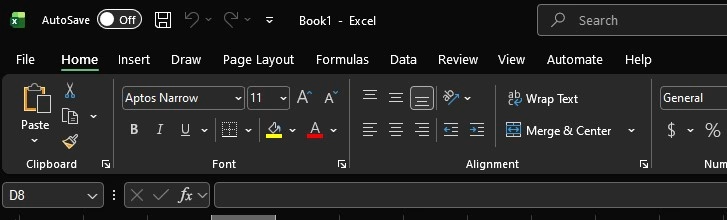
Let’s change that!
Enabling Developer Mode
1) First, we need to right-click the empty space within the ribbon. In my case, you can see I right-clicked to the right of “Wrap text” – you can do so anywhere in the ribbon.
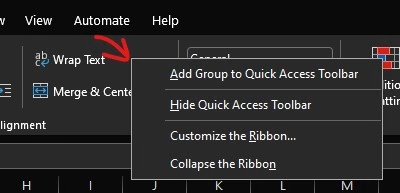
2) Then, we need to click “Customize the Ribbon”.
3) In the “Excel Options” window that appears, we then need look for a “Developer” option on the right, and enable the checkbox.
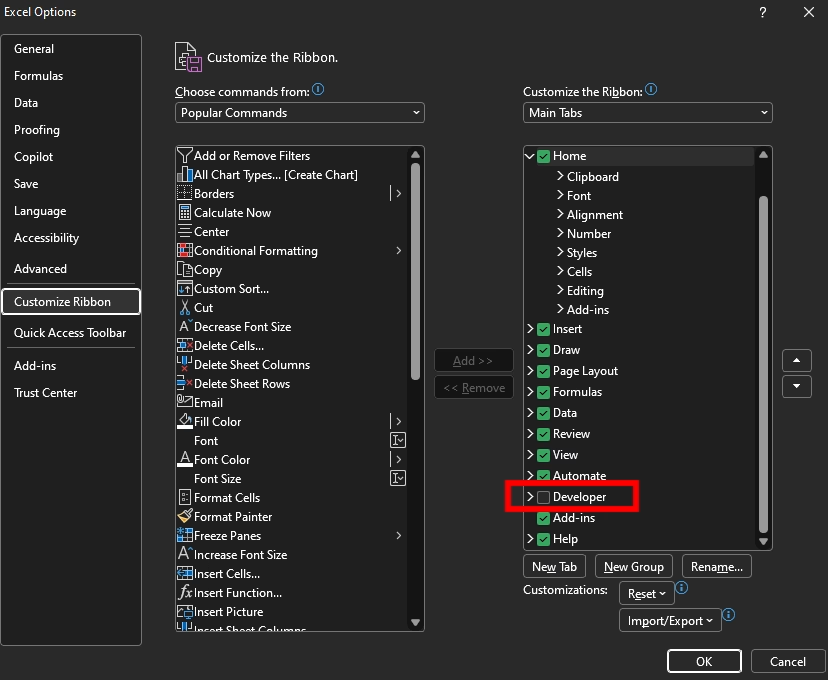
That’s it!

I also explain the same steps via video, if you prefer that.