When your PC starts slowing down unexpectedly as you’re using it, launching Task Manager can be a very easy way to figure out what’s happening. All it takes is a quick tap on the CPU column in the “Processes” tab, and you immediately start seeing which programs are drawing the most processing power. Here’s an example:
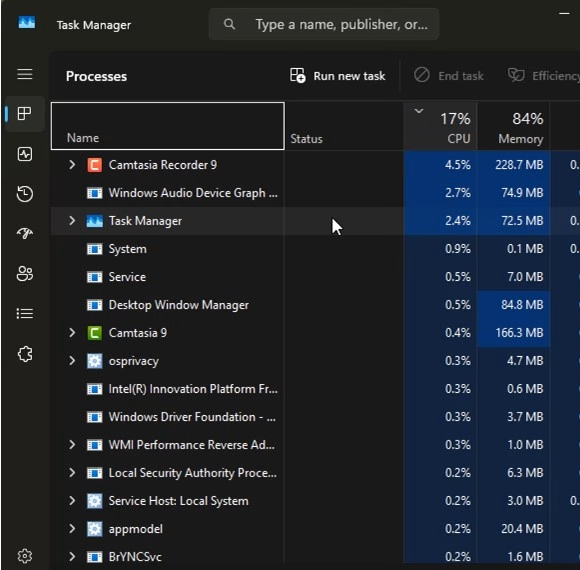
The thing is, CPU is a dynamic thing – so as you’re looking at this page, you see programs jumping around as they draw more or less CPU every given second. This can be really distracting, especially when you see a program listed that you don’t actually need to be running – and you want to end that task. Usually, what I do is try to right-click the program and select “End Task”. Good luck doing that when the list changes every second!
How to Pause the Process List
Hold CTRL – as long as you do that, Task Manager will freeze the program list – it won’t refresh and move things around. Release the key, and the behavior will resume. When I learned this, it just about blew my mind. No longer would I have to play a game of whack-a-mole with task manager! I could hold CTRL, right-click the problem task, and end it, right then and there.
Here’s a video where I show exactly how to do it:
And though I didn’t mention it in the video, it’s also possible to type something in the search at the top – this filters the list to just those that contain the words of your choosing – which can make it easier to locate a specific entry.