As per a recent Microsoft blog post on September 29th, version 26H2 of Windows 11 is now available for devices running 24H2 and 25H2. Like 25H2, it leverages the “enablement package” technology – meaning there’s a chance it takes as little as 2 minutes and a reboot to upgrade.
How to Install the 26H2 Enablement Package via Windows Update
As per Microsoft, to be one of the first to receive the update, you have to go Settings -> Windows Update, and then ensure that you have the latest option enabled:
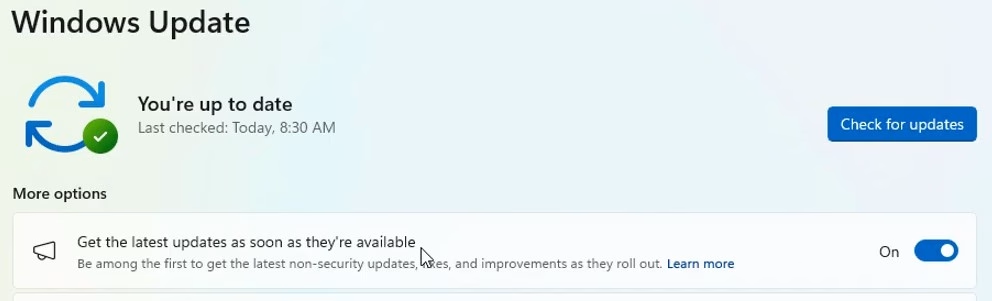
“Get the latest updates as soon as they’re available” should be marked as On.
Once enabled, I recommend clicking “Check for updates” to install any available updates and repeating this until Windows Update has nothing else to offer. If after doing all that, you have yet to see 26H2, it’s possible that Microsoft has not yet expanded their release far enough for your specific device to receive it. This is because Microsoft monitors issues that are reported back from customers and will tailor their release accordingly. For more details about this, I recommend checking out Windows Release Health and reading about 26H2 in question. If you’re risk averse, it might be best to wait just in case Microsoft is aware of a particular issue that would affect your device specifically.
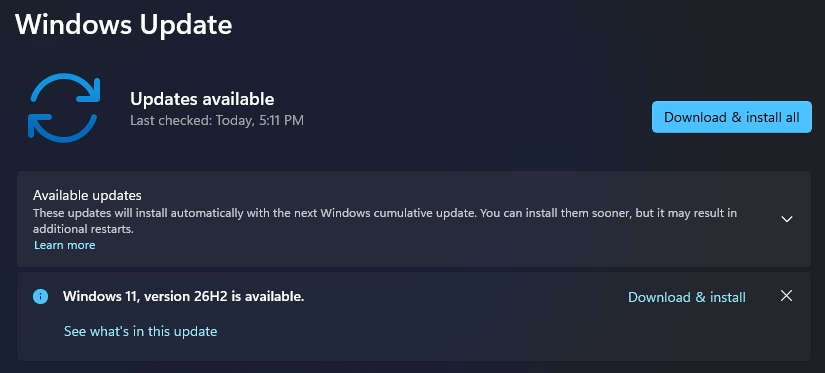
When it appears in Windows Update, it will look something like this:
Okay, but what if I really want 26H2, and it’s not showing up? If you’re an eager space cadet who just wants to be strapped to the rocket and launched into space to discover a new world, regardless of the risk – follow this method:
Force the 26H2 Upgrade using the Installation Assistant
Like I mentioned in my Windows 11 25H2 article, the Installation Assistant can be used as a shortcut – it will, however, take hours to install. Here’s what you need to do:
1) Download the PC Health Check app, install it, and run it once.
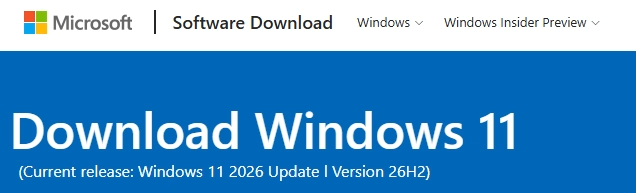
2) Download the installation assistant right from Microsoft’s website. Run it, and follow the steps as it guides you through the process.
Keep your device connected to the Internet and ideally, prevent it from falling asleep. When the process finishes, you’ll be up and running with version 26H2 of Windows and all its features.