Reducing Email Attachment Sizes With Compression

Description

WinRAR:

http://rarlabs.com

B/MB/GB/TB Converter

http://egret.net/kb__mb.htm

Additional Info:

Transcript

In this video, I’ll be demonstrating how to use compression to overcome attachment size limits in emails. As an example, I’ll be using Gmail, which has a maximum attachment size of 25 megabytes. I’ve prepared two scenarios where the size of the attachments exceed the limits enforced by Gmail. In the first scenario, I’m looking to send pictures through email; however, I have exactly 25.1 megabytes of pictures, which is slightly over the Gmail limit. To get around this, I’m going to combine all the pictures into a special compressed file, which will be smaller in size. File compression is included in Windows and requires no additional software to compress files in windows.

  • First select all the files you wish to compress.
  • Right click one of the selected files.
  • Select send to, and then select compressed zipped folder.

Now that the compression process is completed, a file with the extension .zip has appeared in the folder. This file should now have a smaller size than the combined total of the pictures. Sure enough, when I view it in Windows, it has a total size of 24.9 megabytes whereas we previously had 25.1 megabytes for all the photos together. It’s important to remember that this file now contains all of the photos we selected earlier, and if I launch it here, you’ll see what I mean. They’re all listed. Keep in mind that what I’m seeing here is actually enhanced by third-party software, but in Windows, opening a compressed folder (compressed file) is the same is opening a folder, so you will see the contents with all the photos much like what I am seeing right here.

At this point you may be wondering about the efficiency of the approach given that we saved only 0.2 megabytes. The pictures I chose to compress were all in the JPG file format and JPGs, by nature, are compressed images. In fact, many multimedia file types are already compressed significantly by the time they are produced. On the other hand, text files and executables are usually not, so they tend to compress better. At the very least, compression reduces the number files of that need to be uploaded to an email client, simplifying the act of moving them around. In this case, the recipient would receive only one file, and after it is uncompressed on his side, all the photos will be available… and it only took one email.

In the second scenario, I have significantly more pictures to send. Given that their total size is equal to 44.1 megabytes, I will have to change my approach. Rather than compress all photos into one compressed file, I will create multiple compressed files and send multiple emails. While I could simply select a subset of the pictures and create two compressed files via the Send To menu, I will instead use a compression program called WinRAR. WinRAR can be acquired from rarlabs.com, and is free to evaluate.

WinRAR introduces a new compressed file format, represented with the extension RAR. It is similar to the ZIP file, but requires WinRAR to be installed. It has a nice feature that allows RAR files to be automatically split into parts, which will be useful in my case. To create a multipart RAR file:

  • Simply select all the files you wish to compress.
  • Right-click any one of them
  • and select add to archive

This option will appear after WinRAR has been installed. Once WinRAR appears, it will ask you for an archive name, the archive format, compression method and other options. The one we care about at the moment is “split the volumes”. What this will allow us to do is instruct WinRAR to limit the size of each part in the multipart set. So since WinRAR requires bytes in this case “split to volumes bytes”, we will need to use a free online converter which will accept the friendlier megabyte format and change that into bytes. So I have a site right here which I will put in the description which will allow me to do just that. So when I enter 25 megabytes into this site and click on this button below, it automatically provides me with the bytes, kilobytes, gigabytes, terabytes. Right now, we only want bytes, so I will copy this and return to WinRAR. I will provide it with the bytes in the field right here, and click OK.

Now WinRAR will start doing its work – we simply have to wait and once it’s complete we will have two RAR files. You can see right here that it is already talking about part two – we already have two RAR files. Now that it’s complete, I will show you the RAR files right here: scenario two, part one and part two. Now what we can do is simply attach each of these RARs individually to their own emails. So I have an email open right here in Gmail – I will drag the first RAR file into it, and I can send it and simply create a new email and send part two. Once the person receives these RAR files, it’s really as simple as clicking on any one of them, and dragging the contents elsewhere. WinRAR figures out putting them together, and you don’t have to worry about that – so, multiple files, but they’re treated as one when they’re finally collected at the end.

So those were two scenarios that illustrated how compression could be used to get around attachment size limits. If you have any questions about what I presented, please feel free to leave me a comment. I’d be happy to answer them, thanks.

Microsoft Wireless Notebook Optical Mouse 3000 Stopped Working

When my Wireless Notebook Optical Mouse 3000 stopped working, I initially thought the batteries were dead. After switching them out, and noticing that the problem persisted, I started searching for a solution. I tried a few-software level suggestions with no success, but then realized that even the red light under the mouse wasn’t working. Clicking on the “Connect” buttons on the receiver and the mouse didn’t help, either.

Solution

I then discovered a forum post that revealed that my problem was actually hardware based:

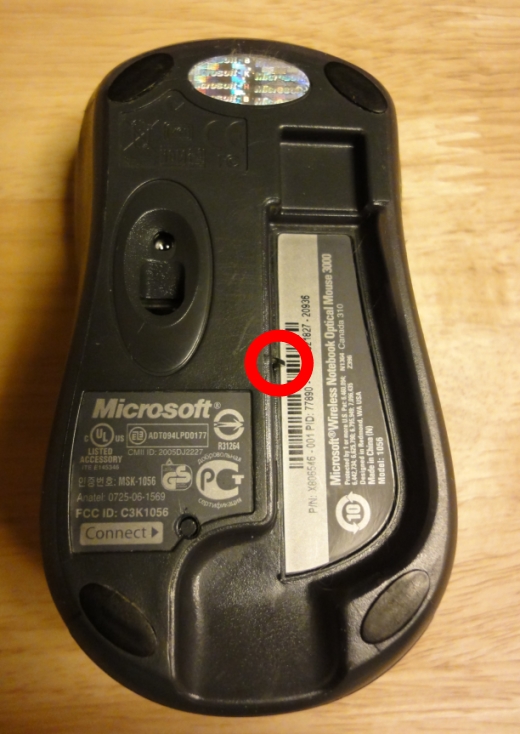
I discovered that a small black springloaded piece comes out of the side of the area where the usb connector rests to turn it off. The small black piece is pushed back when the USB connector (notebook receiver) is pushed into the mouse. The small black piece was sticking and not coming all of the way out. I took a cotton swab and alcohol and cleaned around it and took a small screw driver and pushed it in and out until it freely moved all of the way out which turns the light on and eureka, it worked!!!!

All I had to do was press the button a few times, and it became unstuck. This caused the light to turn back on, and the mouse started working again.

The button was stuck, fooling the mouse into thinking that the receiver was docked. This explained why the red light was off.

Top 10 Blogging Tips

When a friend of my mine started blogging, I found myself offering him tips by e-mail. I realized that with 2+ years of blogging experience came some new knowledge, so I decided I should probably share what I’d accumulated. I normally avoid blogging about blogging at all costs – but I felt this would be a good moment to make an exception. The tips I’m sharing below are not meant to be seen as the true, all-powerful top 10 laws that a blogger must abide by. They are merely guidelines that I have deemed important for my own blog, and felt might be useful to others as well.

10 Avoid Bandwidth Theft Some web developers find creative ways to punish bandwidth thieves.

It is important to remember that anything found on the web is hosted by a computer somewhere, and that computer is connected to the internet through a service provider. This could be a computer owned by an individual, or one owned by a hosting company – either way, the constant is the service provider, which usually requires money.

So, for example, if you found an image at Wikipedia that you wanted to use, you could technically copy the path to that image, and reference it directly on your own blog or site. Even if you have the right to use that image according to its license, the fact that you are using the Wikipedia URL to access it means Wikipedia is hosting the image, not you. Unless you have explicit permission to use a direct URL to their image, it is considered bandwidth theft. Wikipedia pays to publish their content to the Internet, and therefore likely has bandwidth limits to respect.

Assuming I have the right to use a given image, there are two approach that I use to avoid stealing bandwidth:

  • I download the image and host a copy on my own server. I can then use my own image path in my blog post, ensuring I’m the one paying for the bandwidth.
  • I download a small version of the image, and host a copy on my own server. Then, if the user clicks on the image to expand it, they are brought to the Flickr page that represents it. I use this approach often when interacting with Flickr, as it helps control my bandwidth consumption, while offering readers the functionality of Flickr. The only downside, of course, is that if the image is removed from Flickr, I only have the small version on my blog.

Regardless of the method used, copyright laws must be respected – but I’ll cover more about that later in the Top 10.

As a content creator, if you want to prevent others from stealing your bandwidth, I suggest reading Blocking Image Bandwidth Theft with URL Rewriting from Coding Horror. If you’re not a developer, most blogging platforms have plugins that help in implementing such security measures.

9 Always Use Descriptive Link Text

It is common on the web to see words like “click here” or “this” used as a link, but it has no value from a search engine optimization perspective.

Search engine optimization (SEO) is the process of improving the visibility of a website or a web page in search engines via the “natural” or un-paid (“organic” or “algorithmic”) search results.

In fact, you’re missing out on an SEO opportunity whenever you do this. What I do is structure my sentences so that the link can be something descriptive, like this:

GOOD: If you want more information about the plugin, make sure to check the project page on my website. To download it, or see how my work on it has been progressing, see the All Due Credit page in the plugin directory.

Saying “click here” would definitely be easier:

BAD: If you want more information about the plugin, click here. To download it, or see how my work on it has been progressing, click here.

…but I avoid that at all costs. I rather have descriptive text hotlinked, as it tells the user and Google what to expect if they click the link. If the link can exist without the rest of the paragraph, and still be understandable, then you’re set. “click here” is meaningless without his paragraph. Also, the concept of “clicking” a link should be common knowledge at this point, so there is little value in repeating it.

8 Vary Wording Within Each Post

When I write posts detailing a problem I encountered, I often try to describe that problem in a few different ways. When I do this, I am specifically trying to mimic the different ways that users would describe the problem when they type it into Google. In doing so, I’m actually increasing the chances that people will find me through Google searches, and I’m also making sure my writing isn’t very repetitive. A good place to do this is in the image ALT, as it is normally not visible to visitors. The ALT is usually used when visitors are using screen readers, or when the browser doesn’t support images. One important thing to note is that the Google Crawler does not see images – so the ALT is pretty important, as it will be considered by Google. Also, when adding different wording, make sure that the choices you make don’t comprise the clarity of the message.

7 Ensure External Links Aren’t Helping Readers Leave Your Blog Green escape sign

By default, when someone clicks a link found on a website, it will load in the same tab (or window). Web developers can change this behavior on a per-link basis, and so it is no surprise that blogging software allows this flexibility as well. When I author blog posts in WordPress, I configure all links pointing to external sites to open in a new tab, rather than load in the current tab. Launching a new tab ensures that the viewer can return to your blog if they want to, rather than truly navigating away from your page. This approach is especially valuable in my case, as I like to add multiple links to my posts, in case people want to know more.

6 Treat Posts as Private While Writing, and Public When Finished

Most blogging software I have encountered seem to treat new posts as drafts, and when published, they are immediately made public. WordPress is a good example of this – while this may be appropriate for some bloggers, I personally find it exceptionally annoying. Just because I’m creating a new post, doesn’t mean I will finish it in one shot. I’m the type of guy that makes multiple edits, some of which made be split across a number of days. I like being able to click “Update” to save a post in progress, rather than avoid the “Publish” button until everything is done. So, to ensure I never accidentally click “Publish” while editing an incomplete post, I change the visibility to “Private”, and immediately click “Publish”. Private posts are only visible to those that are logged into the blog, and in my case, that’s just me. Thanks to this approach, I know I will never accidentally publish an incomplete post to the public, and I will be able to click “Update” as many times as I wish.

5Respect Copyright Laws

Everything you can find on the internet has some sort of author behind it, and it is important to respect the rights of those authors. For example, when I’m writing a post about a particular subject, I could easily hop on Google Images, and get some related images that I can use on my blog. This is easy to do, and I can get these images up on my blog fairly quickly – but is it legal? Most of the time, no. If the the guy that actually created those images ever realizes I’m using them, he has a valid reason to bring a lawyer into the mix. I’d be pretty much stealing his images, oblivious to the rights he has as the creator.

To ensure I don’t violate the rights of content creators, I specifically look for images with licenses that suits my needs. My favorite source is Flickr, as they have a really good way to display and search for image licenses. Their advanced search has an option called “Only search within Creative Commons-licensed content”, and, when enabled, it offers the two following check boxes:

  • Find content to use commercially
  • Find content to modify, adapt, or build upon

I usually check them both, which ensures that the images listed are all available for me to use, in whatever way I chose. There are still rules I have to follow, but Flickr does a good job of describing them… and I’m more than happy to comply.

The same goes for text, or other media. If you’re going to include someone else’s work, take steps to ensure you are respecting them in the process. Also, no matter what, make sure you always give proper credit to the creator.

4Leverage Social Networks to Attract Additional Visitors

There are three main areas that I would like to showcase in this section: auto-publishing, sharing, and social reactions. I’ll approach them in chronological manner, as it best reflects how my blog evolved in this department.

A while back, I installed a WordPress plugin called WordTwit. With it, I was able to have my blog automatically post a Twitter update whenever I released a new blog post. When people started visiting my blog from these automatic tweets, I realized that I had discovered a new, easy way to expand the number of readers I received. After all, it really wasn’t much trouble to set up, and it certainly couldn’t do harm. Since then, apart from adding my blog to Technorati, and a few other directories, I haven’t added more automatic posting mechanisms. I did, for a brief few weeks, try setting up auto-publishing on Digg v2, but it turned out to be so broken that I gave up on it. It took a long time to detect new posts, and even then, only half were being discovered properly. That said, I recommend auto-announcing content to social networking sites, wherever possible and functional -but care must be taken to ensure the audience doesn’t feel like they are receiving spam.

Beyond auto-publishing, I wanted to make sure that it was easy for readers to share my articles with their friends, if they wanted to. To do this, I installed a plugin called AddToAny, which supports a huge amount of social networking services. Sure enough, I eventually saw that readers were sharing my posts on Google Buzz, Facebook, and the like. Once more, supporting this was really trivial – and it benefits bloggers, as well as their readers. Eventually, after months of using Twitter actively, and years of using Facebook, I also added two prominent buttons to my posts: Twitter’s Tweet Counter, and Facebook’s Like Button. Together, they further encouraged sharing, while also providing me with visual feedback whenever readers approve of my content.

Finally, I recommend using a commenting system that supports Twitter reactions, as they are very similar to comments. Personally, I have recently started using Disqus for this.

Combined, the improvements I made in the three areas above have lead to increased readership, as well as improved personal satisfaction in the content I produce.

3Review Obsessively

As I write posts, I often take breaks to re-read the progress I have made so far. These multiple iterations allow me to spot problems early on, and also ensure my post is flowing in the right direction. Once I reach a point where I feel the post is complete, I treat it as a candidate. Before I deem it acceptable to post publicly, I load it on my phone, and step away from the computer. The physical disconnect from my computer allows me to view the article as if I was a reader, not the author. As I’m reading, I take note of problems I find, as they will all need to be corrected before the post goes live. I then use my browser’s Find feature (CTRL+F) to search for any double spaces that may have been mistakenly added to a post. Spell-check doesn’t normally look for such mistakes, so I have to check manually. Once I’ve done all that, I consider having another person review my post. Since they’re completely unfamiliar with it, they might see mistakes that I have been missing.

2Include Relevant Images

Back when I was simply a blog reader, rather than a blogging myself, I recall discovering the Wall of Text effect. That is, whenever I was faced with an article that contains a huge amount of text, I was discouraged from reading it. There are many factors that can help alleviate this effect, but the most useful I’ve found is simply adding relevant images. Even with good formatting, a large blog post can be intimidating… but images tend to space out the text, and make it seem like you’re not being assaulted. When doing this, make sure that the images themselves are relevant to the text, as opposed to random photos that exist purely to space out the text. Jeff Atwood of Coding Horror had a really great way of looking at this:

As the old adage goes, a picture is worth a thousand wordsBut you should no more insert a random image into your writing than you would insert a thousand random words into your writing. I don’t care how beautiful your photographs are, it’s a terrible, irresponsible practice that distracts and harms readability.

1Split Long Posts Into Multiple Pages

With long blog posts, sometimes including relevant images won’t be enough to ward off the Wall of Text effect. Personally, I find that when a post approaches 5000 words, it is better to release it as a two-parter (2500 per part), rather than one giant offering. Formatting and relevant images can only do so much in distracting users from the abundance of words on a given page. However, great care must be taken to ensure users aren’t angered by the multiple pages. All too often, I see web site splitting content across pages purely to increase the ads presented to the user. For me, nothing is more infuriating than having to step through an ad-infested post, with little valuable content per page. I usually give up on the second page, and make a mental note to never visit the website again. Performance is another key factor here – loading the next page shouldn’t interrupt the reader for too long, otherwise they might just get irritated.

When executed sensibly, I feel the multiple page approach can be beneficial on multiple fronts. It improves user experience, makes it easier for bloggers to write huge articles, and could potentially improve search engine rankings. Now, I haven’t found a conclusive article to confirm the search engine benefits, but the way I see it – more pages of quality content can’t be a bad thing.

Got tips? Feel free to share them in the comments below – I’m always interested in learning more.
How to Make Binoculars With a Paper Towel Roll

You will need:

  • Scissors
  • Paper towel roll
  • Tape
  • Pencil or Pen
  • Ruler
  • Calculator

Step 1

Using the ruler, measure the length of the paper towel roll. In my case, it turned out to be 11 inches long. Remember this number – it will help you make additional binoculars in the future, without requiring that you measure each time.

Step 2

Using the calculator, divide the length of the paper towel roll by two (2). In my case, 11 divided by 2 resulted in 5.5, which is exactly half the length of the roll. Using the pen (or pencil), make a marking on the roll at this measurement.

Step 3

With the scissors, carefully cut the roll in half using the marking we created in Step 2. In my case, I decided to use scissors that barely worked. This had the effect of making the cuts look rugged, and thus, more manly.

Step 4

Now that we have two separate rolls, place them next to each other on a flat surface, as they would look if they were binoculars. Once they are lined up properly, tape them together at the middle, all the way around.

Success!

Congratulations, you have successfully made binoculars out of a paper towel roll!

Archiving Tweets Using WordPress

Since I began using Twitter actively, I’ve been looking for a reliable way to ensure my tweets will be forever accessible. In my experience, Twitter never offered an easy way to locate old tweets. From a profile page, a user can keep loading tweets by simply scrolling down the page. That scroll-to-load approach works, but it takes a lot of time, and there’s no guarantee that Twitter will allow this mechanism to load thousands of additional tweets. As far as I can tell, there’s no simple way to find a tweet from June 2010, for example – even if you try to search by text, it won’t necessarily be found. It seems to me that Twitter prioritizes recent tweets, and eventually removes the older ones from their index. While I find this is somewhat appropriate for Twitter, I would prefer having the same confidence I have in Gmail. Regardless of how many e-mails I write, I know that Gmail will always keep them around.

After trying a few potential solutions, it eventually hit me: what if I could have one WordPress post per tweet? I would have no problems locating old tweets, as the WordPress search feature works quite well. The resulting database would be easy to manipulate, and completely under my control. Not to mention the huge amount of plugins available at WordPress.org. A couple hours later, I had the WordPress solution implemented, and am still using it today.

To get it working, I used two key WordPress plugins:

1) Twitter Importer by Brad Touesnard

I used Twitter Importer to retrieve all tweets that had already been published. This is necessary because the automatic tweet importer only handles new tweets.

2) Twitter Tools by Crowd Favorite

This plugin, among other things, is capable of automatically importing new tweets. To get it working, I had to register an application with Twitter, which is a bit odd – it seems like something only a Twitter application developer would need to do. In any case, once I got that configured, Twitter Tools began to import new tweets automatically. The rest is really a matter of preference: for example, I decided to disable comments, pingbacks, and other features that I felt weren’t inline with my intentions. I also downloaded and installed a WordPress theme that looked suitable for microblogging: P2, by Automattic.

The only imperfection I noted is a bug that I’ve first seen in Google Buzz. Twitter recently improved the re-tweet action, allowing users to simply click a Retweet button, instead of manually replying with the “RT @username” prefix.

Consider this tweet by Liana Maeby:

Being better off alone is super til you need to open the jar to trap the spider who’s crawling around where you’ve fallen & you can’t get up

— Liana Maeby (@lianamaeby) March 15, 2011

It is exactly 140 characters, the maximum allowed for a tweet. When re-tweeted, here’s how it looks:

Looks great; no “RT @username” pollution, instead, a clean icon in the top left corner. It seems like Twitter is handling it internally, rather than simply adding the “RT” prefix to the tweet. Yet, when you view the same re-tweet from outside Twitter, different story:

In these cases, the “RT @username” prefix is visible – and it actually uses up part of the 140 characters. If the tweet was 140 characters to begin with, this means the last few characters could be sliced off to make room for the prefix. Not only that, but an ellipsis is added to convey that the original text has been truncated. Since this is happening in Google Buzz, I’m ready to write this off as Twitter bug. It’s unfortunate, though, because it means my Twitter archive is truly imperfect. Tweets could be missing content, which sometimes means a URL gets chopped in half.

Imperfections aside, I believe I found a decent way to archive my tweets, all the while without changing the way I already use Twitter. Plus, my Twitter Archive includes links back to my other websites – so it could also be useful in bringing in new visitors.

Remote Desktop: A Device Attached to the System is not Functioning

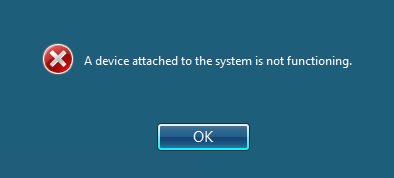
Every now and then, when I attempt to connect to my work machine using Remote Desktop, I encounter the following error:

A device attached to the system is not functioning.

Considering I have no special devices plugged in at work, the message always comes as a surprise. Multiple attempts to connect will simply result in the same message, forever blocking the connection.

Solution

Though I haven’t had the chance to try it, commenter “Rahim786” seems to have found a better solution:

“1) Kill explorer of that session

2) now you will be able to connect to this session

3) Press Ctrl + Shift + Esc to launch Task Manager

4) Click new task and run Explorer again”

Thanks, Rahim786!

Other Potential Solution

The solution I found involves using Remote Desktop to connect to another machine at my work, and using that machine to resolve the problem. Let’s say PRIMARY is my primary work machine, and SECONDARY is a secondary machine I can access from home.

Here’s what I do to resolve the error:

  1. Log into SECONDARY with Remote Desktop, from my home machine.
  2. From within SECONDARY , I launch Remote Desktop again, and connect to PRIMARY.
  3. From within PRIMARY, I click Start > Log off, which will log off the user, and ultimately disconnect my Remote Desktop session.
  4. With the PRIMARY connection closed, I simply disconnect from SECONDARY using my home machine.

Once those steps are completed, I’m usually able to connect to PRIMARY directly from my home machine, without seeing the error. It seems that it has something to do with the user session, perhaps also combined with the operating system you are using to connect. If you can’t connect to SECONDARY, consider finding an alternative with an older operating system. In my case, SECONDARY ran Windows Server 2003, while PRIMARY ran Windows Vista Business.

Resistible Savings

Here’s an amusing post I encountered over at Amazon.ca, while looking for a cheap headset. At first glance, I was glad to see it was selling for less than the list price, but then I noticed exactly how much was being saved.

<sarcasm>How can I say no to such a generous offer?</sarcasm>

I’m not sure whether this is a mistake, now that I think about it. I can see why it would be beneficial to show that all their items have savings applied, regardless of the amount. After all, it made me react positively, that is, until I noticed the amount saved. Either way, it appears the Americans get a better deal… blame Canada?

Update January 8, 2023: Amusingly, since this post was originally written, the Canadian Amazon posting has been discontinued, and the American now costs a whopping $174.31. I’ve thus removed the Amazon links.

IE8 Developer Tools Debugger Stuck Off-Screen

As a frequent user of the built-in Internet Explorer 8 debugger, I was particularly annoyed when it suddenly started to appear off-screen. As you’ll see below, the debugger window itself was nowhere to be seen, whereas the actual “JScript Debugger” balloon tip remained visible.

JScript Debugger window has disappeared from sight. Balloon tip shows text: "Breaking on JScript runtime error".

Amusingly enough, the balloon was pointing up, suggesting that my missing window was in that direction. I hoped it would stop happening after a reboot, but unfortunately, this was not the case.  To make matters worse, trying to killing the process wasn’t easy, as it often took a good two minutes for the kill command to take effect. I believe this was because the process was in a debug state, rather than running as normal.

Solution

After dealing with this problem for a few weeks, I eventually showed the behavior to a co-worker, François. Upon seeing it, he suggested I try moving the window through the Windows context options, and sure enough, that worked.

Below are the necessary steps:

  1. Right-click the “Developer Tools” window in the taskbar.
  2. Select the “Move” option.
  3. Press the one of the arrow keys. (This should make the Developer Tools window appear directly under your mouse cursor.)
  4. Move the mouse until you can see the “Developer Tools” window completely.
  5. Left-click to stop the “Move” operation.

After following those steps, my Developer Tools window returned to the real world.

Thanks to François

Slow Mouse When Controlling a Virtual PC Through Remote Desktop

At my day job, I spend a good deal of time working with virtual machines, whether with Virtual PC 2007, Virtual Server 2005, or Hyper-V. All three seem to work fairly well when I’m logged into my machine locally. However, when I use Remote Desktop to connect to my work machine from home, I recently noticed that my Virtual PC machines suffered from some serious mouse lag. Moving the mouse would make the cursor teleport, rather than smoothly moving across the Virtual PC desktop. The faster I tried to move the mouse, the worse the effect became. Hyper-V  had no such problems, so I began to wonder if I could do anything to solve the stuttering.

Solution

Thanks to a forum post, I discovered that this was caused by a  low Hardware acceleration setting in the virtual machine’s display properties. Here are the specific steps required to solve the problem within a Windows Server 2003 virtual machine:

  1. Right-click the Desktop, and select Properties.
  2. Move to the Settings tab in the Display Properties dialog.
  3. Click the Advanced button.
  4. Move to the Troubleshoot tab in the Monitor Properties dialog.
  5. Move the Hardware acceleration slider all the way to the right, so it is right next to Full.
  6. Click OK in the Monitor Properties dialog.
  7. Click OK in the Display Properties dialog.

…and you’re done. That’s all there is to it.

See Also

Mouse Slow and Jerky in Virtual PC 2007 running on Vista home premium

Coupon Codes Made Easy

As a guy who makes a good number of online purchases, I’ve grown familiar with the concept of coupon codes. Like their physical equivalents, coupon codes can be applied while checking out of certain stores, allowing customers to benefit from reduced prices. Unfortunately, online coupons are similar to physical coupons in that you must know about them to exploit their benefits. Thankfully, I discovered a solution to that a few years ago, greatly increasing my ability to take advantage of these coupons. Meet RetailMeNot, a site that encourages users to share coupon codes with the world.

The main page of RetailMeNot.com lists top coupons and stores, and also has a search feature.

In the past, I was rarely able to partake in the coupon code mechanisms offered by retailers. RetailMeNot changed the game by introducing the possibility of searching for codes by simply providing a store name. It wasn’t long until I adopted it as part of my online shopping habits – I began searching for possible coupons before buying anything. It was a good system, and quite unexpectedly, it got even better… all because of a Firefox plugin. RetailMeNot introduced a Firefox plug-in that will automatically tell you whether the site you are looking at has available coupons.

RetailMeNot's Firefox plugin is capable of reporting coupons as you browse

Without having to visit the website manually, I could behave as I normally would, knowing I would be notified when necessary. This mechanism allowed me to save time and money, all without disturbing my regular browsing habits.

To be fair, I must point out that RetailMeNot does have a couple flaws. First, some users are finding that coupons sometimes don’t work, when used. To help mitigate this problem, RetailMeNot now includes a “chance of success” rating along with all coupons, fueled by user votes. That way, if a coupon starts to fail, the community is able to flag it, warning other users. The second flaw lies in the plugin specifically, but isn’t the fault of the makers. Instead, it seems certain companies have been successful in removing themselves from the plugin’s control. You can still search for coupons on the site, but RetailMeNot has been forced to block certain sites at the plugin level, preventing the automatic coupon lookup.

Despite the flaws mentioned, I highly recommend the website, as they really enhance e-shopping as a whole.

UPDATE: May 29, 2016: Firefox extension no longer exists, removed link.