Transcription
Coming soon
 Matt Refghi
 Description Ever wanted to migrate your files away from Google Drive? Here’s how you can do it without converting files one by one. Transcription Coming soon.
Windows provides a large variety of keyboard shortcuts, many of which allow you to speed up your progress when working on tasks. Today I’d like to bring your attention to very specific shortcut: When pressed, it will make File Explorer appear immediately: So, in essence, it’s the same as pressing this shortcut if you have it in your taskbar – without using your mouse: It’s also particularly easy to remember if you keep in mind that E stands for Explorer… File Explorer. While this isn’t necessarily the most ground-breaking of the Windows key shortcuts published by Microsoft, I find myself using it nearly every day at work, and figured it’d be good to share for that reason. It’s a minor … Read more
Transcription
Coming soon
Transcription
Coming soon.
Transcription
Coming soon.
Transcription
Coming soon.
Transcription
Coming soon.
Windows 11 24H2, which released in 2024, is going to be out of support as of October 14, 2026 – which means you won’t necessarily be getting all the security updates if you stay on that version beyond that date. Thankfully, Windows 11 25H2 is out! And there’s something very interesting about how Microsoft approached the 25H2 upgrade.
When Microsoft shipped 24H2, they included the 25H2 features in a dormant state. This means that to activate 25H2, you don’t necessarily need to download the full Windows 11 image (.iso) and install from scratch. Some users, when they check Windows Update as normal, will instead receive what’s known as an “enablement package“. This package is very quick to install because it’s effectively just flipping a switch – the features are already baked into 24H2. Once it’s been installed and the computer has been rebooted, it’s officially running 25H2, which makes its end date jump to October 13, 2027 with little effort.
First, check for updates, as usual, via Windows Update. I recommend turning on the “Get the latest updates as soon as they’re available” feature if you’re particularly enthusiastic.
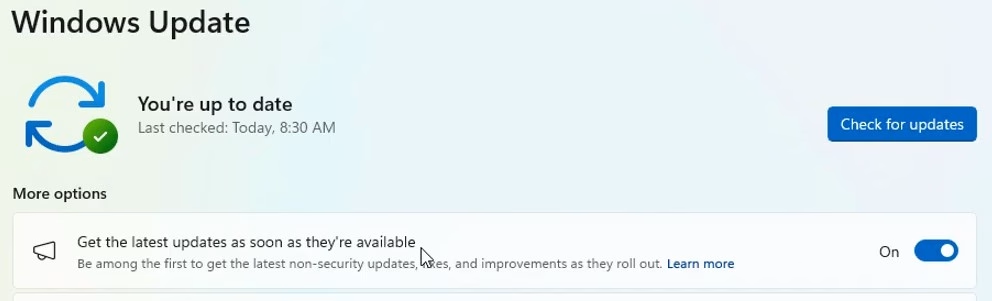
After you’ve run out of updates to install, press the start button, press Settings, then System, then About. The About page will show you which version of Windows you’re running.
If you’re still on 24H2 and Windows Update isn’t serving you any updates, you can still get 25H2 by downloading the installation assistant from Microsoft’s website – it will guide you through the process. This method can take a bit of time, but I show it in case you’re an eager enthusiast like me.
There are only two main steps here:
1) Download the PC Health Check app, install it, and then run it once – you won’t be able to use the installation assistant unless you do this at least once. This app will determine if your system meets the specifications to run Windows 11 25H2. If you’re running 24H2 already, you’re more than likely going to be OK to run 25H2.
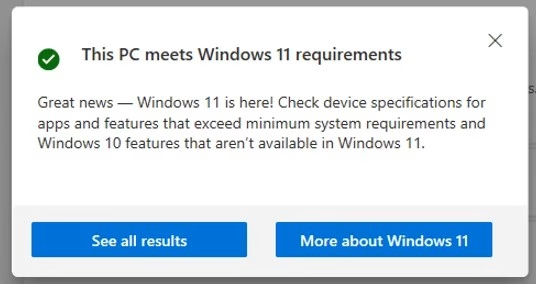
2) Download the installation assistant and launch it. Simply follow the steps and wait – it will handle the upgrade to 25H2. It does, however, require Internet access to do so.
If you’d rather watch me explain how to do this – please see the following video:
Transcription Coming soon.
Transcription Coming soon.