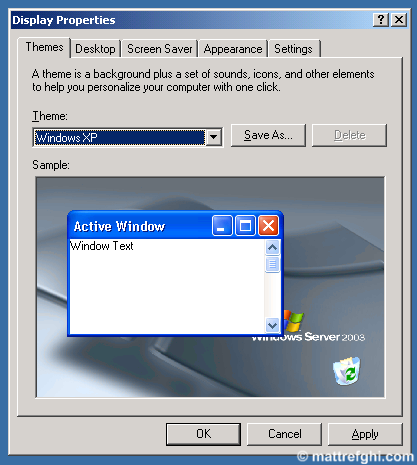
Microsoft’s Server operating systems are specifically aligned to offer, above all, top reliability and performance. It is therefore no surprise that Windows Server 2003, at first glance, seems to lack the standard Luna desktop theme that XP users have been accustomed to. Here’s the thing: The feature isn’t missing, it’s just “hidden” by default. Solution Here’s how to enable it:
1) Open the Services Management Console by entering “services.msc” in the Run dialog.
To open the Run dialog, click Start > Run, or press Windows Key + R.
2) Locate the Themes service, right-click it, and select Properties.
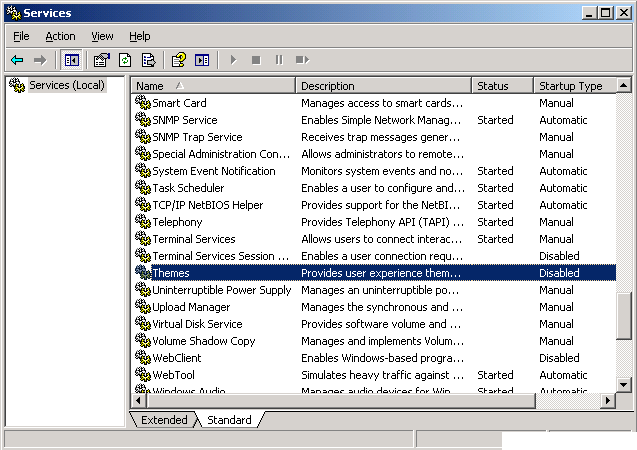
3) On the General tab, select the Startup Type dropdown, and choose Automatic.
4) Click Apply.
5) Click OK.
6) Right-click the Themes service again, and select Start.
7) Close the Service Management Console.
8) Right-click on the desktop, and select Properties.
9) On the Themes tab, select the Theme dropdown, and choose Windows XP.
10) Click Apply.
11) Click OK. The Windows XP option, by default, is not listed as an available theme in the Display Properties dialog. When we started the Themes service, the option was added… and there you have it. You can now use the XP theme (Luna), in a Windows Server 2003 environment.