So you’ve turned on dark mode in Notepad++ and are enjoying the experience of working in the dark, without your eyes being casually assaulted by white screens. But then… when you print, you notice the text looks strangely faint, like this:
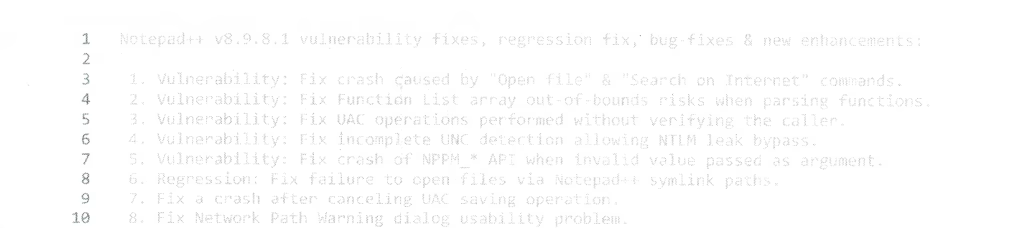
The first time it happened to me, I gave my printer a suspicious glance, and wondered if it was running out of toner. Then I noticed that the line numbers were more legible than the text itself, which seemed to be a clue. I soon began to suspect that this was related to how Notepad++ handled dark mode. When I dug into it, my suspicions were mostly confirmed.
So here’s the thing – by default, Notepad++ is configured to NOT print the background of documents. Given this is a text editor that usually has a white background, this setting is kind of harmless, or even moot. But when your background has color, like the “dark mode” colors you see in the screenshot below, this harmless setting actually done something that initially seems pretty smart.
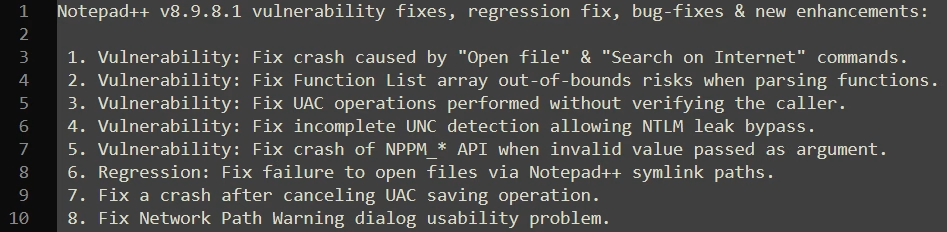
If the background printed in the above case, I’d essentially be punishing my printer and wasting toner – it would have to print a giant block of dark grey background exactly as you see above, and the text, light beige, would be legible only due to the contrast. Unfortunately, by excluding the background specifically in this scenario, the only thing that’s permitted to print is the light beige text… which as you saw above, is pretty hard to see when the sheet of paper is white.
Here’s how to fix it:
1) Click Settings, then Preferences.
2) On the left, click the “Print” option.
And on that screen, select “Black on white” in the “Color options” section.
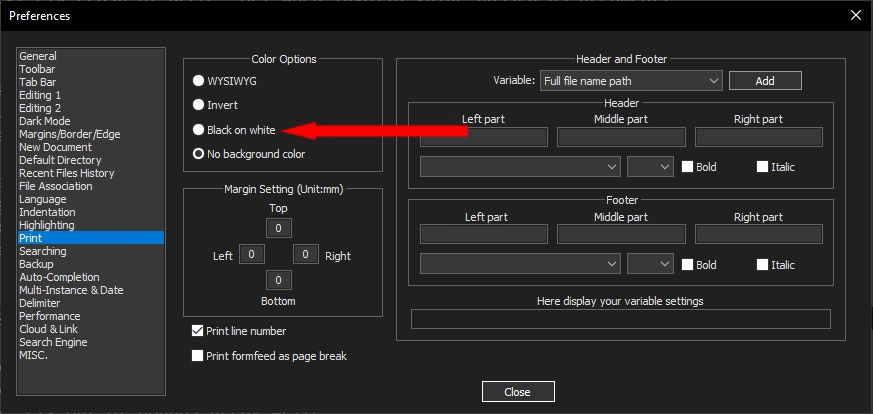
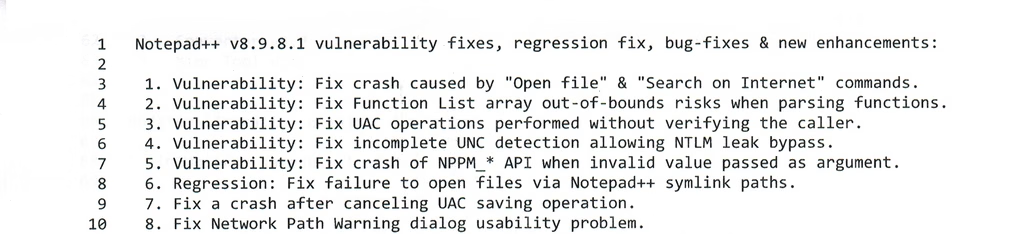
With that setting changed, when you print, things will look a lot more normal:
If you ask me, switching to dark mode should prompt the user and ask if they want to print “black on white”, rather than letting them encounter this problem. That, or just turn it on automatically when dark mode is enabled.