If you’ve been on Facebook for a while, you’ve probably noticed that their news feed typically features a mix of the following content:
- Organic posts (real content from friends and pages you follow)
- Suggested content (stuff Facebook thinks you might like to see)
- Paid ads (Advertisers paying to show you ads based on what Facebook knows about you)
Naturally, paid ads and suggested content may miss their mark in terms of how useful they are. As users, we have some control – we can tap the “X” in the corner of these posts – and we will have an opportunity to point out why we weren’t interested. That may help Facebook show us more useful content later – but of course, there’s no way to opt out of seeing this stuff, it’s how they make money.
What we have direct control over, however, is the friends we’re connected to and the pages we’ve liked. I was asked recently how a person could go back and find all the pages they’ve liked on Facebook, to essentially do a clean-up. I figured it would be buried deep in Facebook’s menus, and indeed, I was right.
How to Clean Up Your “Liked” Pages on Android
1) Tap your profile photo in the top right:
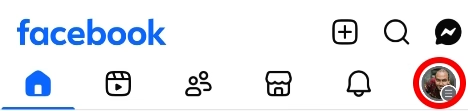
2) Scroll down to where it says “Settings and Privacy”, and then expand that.
3) Tap “Settings.”
4) Scroll all the way down to the “Your Activity” section – in that section, tap “Activity Log.”
5) Expand the “Your Facebook activity” section.
6) Scroll down until you find the “Pages” section and tap “Manage Pages”.
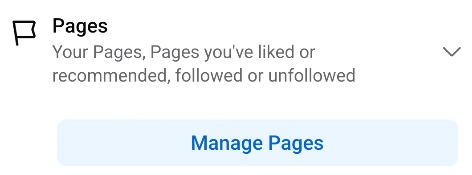
That’s it! You will now see the list of the pages that you’ve liked, reverse chronologically. You can easily tap the “…” icon next to any entry to unlike the page.
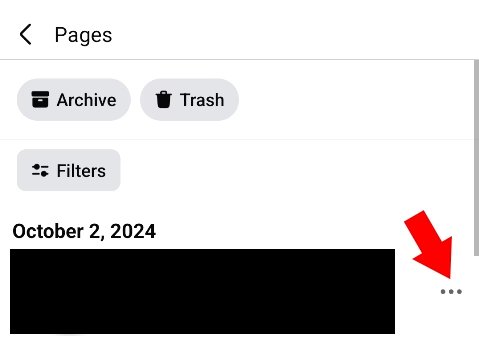
Now, I should specify that there might be quicker ways to get to the “Pages” section – Facebook tends to have an algorithm even when it comes to their own menus. The path I’ve shown you here is a bit long, but as far as I can tell, it should be universal in terms of its position.
Here’s a short video that walks you through the process: