I was downloading the game client for StarCraft 2, in anticipation of the July 27, 2010 release – when the Blizzard Downloader started to complain. It claimed it couldn’t write a file properly, after already having written 2GB of data. Given that it was downloading straight to an external hard drive, I wasn’t completely surprised. I decided to scrap whatever I had already downloaded, change the download directory to my internal hard drive, and start anew.
I couldn’t find a way to change the download directory from within the Blizzard Downloader, so I instead deleted the download directory, hoping it would realize it – and prompt me for a new directory. Unfortunately, it wasn’t that intelligent:
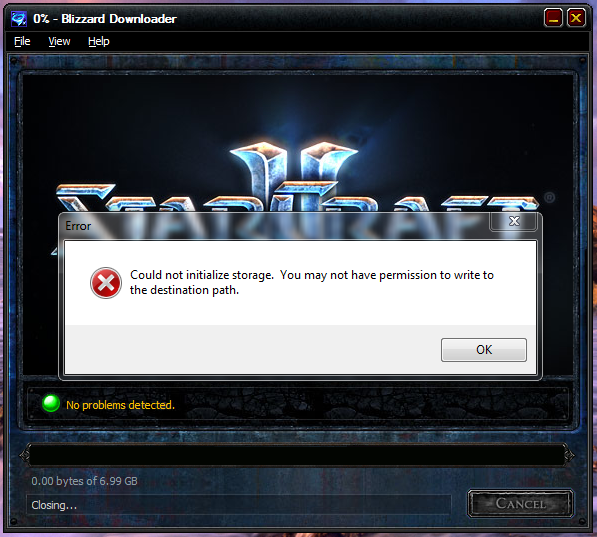
Clicking OK would just cause the Blizzard Downloader to close.
Solution
 Some of the instructions found in this article involve modifying the Windows registry. If modified incorrectly, serious problems may occur. It is highly recommended by both the author of this article, and by Microsoft – that you back up the registry before you modify it. For information on how to do this, please see the following Microsoft Knowledge article:
MSKB 322756 – How to back up and restore the registry in Windows.
To solve this, I had to delete a specific registry key that was created by the Blizzard Downloader:
HKEY_CURRENT_USERSoftwareBlizzard EntertainmentDownloader
After I deleted it, the next time Blizzard Downloader appeared – it prompted me for a new directory.
Here’s how to do it:
- Click Start – Run (or press Windows Key + R). Type regedit.exe in the “Run” dialog, and press Enter.
- Navigate to “HKEY_CURRENT_USERSoftwareBlizzard Entertainment” using the Registry Editor.
- Right-click the “Downloader” key.
- Select “Delete”.
- Press “Yes” when asked whether you want to delete all sub-keys.
Keep in mind, though, that I had deleted my partial download, so I had nothing to lose. If you plan to move a partial download to another directory and resume… it might be safer to leave most of the registry keys alone, and just change the path in one specific Downloader sub-key. To do this, look at the Downloader sub-keys, you’ll find one that is named “Path”. It holds the path you’re downloading to – you can try changing it only there, and see if that’s enough.